
Jupiter Setup
Homepage
Add the 'Jupiter Home' section onto the homepage and add the header and footer into their respective header and footer areas.
Enable the Shrinking Header option in the header settings. Set logo size and padding accordingly to logo design and layout.
Add this script to the Body End HTML field in the Head HTML section of the site settings:
<script src="https://zauaewebmanager.z8.web.core.windows.net/scripts/sliders/bxslider/jquery.bxslider.min.js"></script>
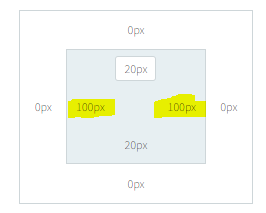
In the header settings adjust the inner left and right padding to 100px. This insures that the logo and navigation align with the content.
Internal Pages
Add the section 'Jupiter Internal Features' to an internal page and then add it to the footer area of the page.
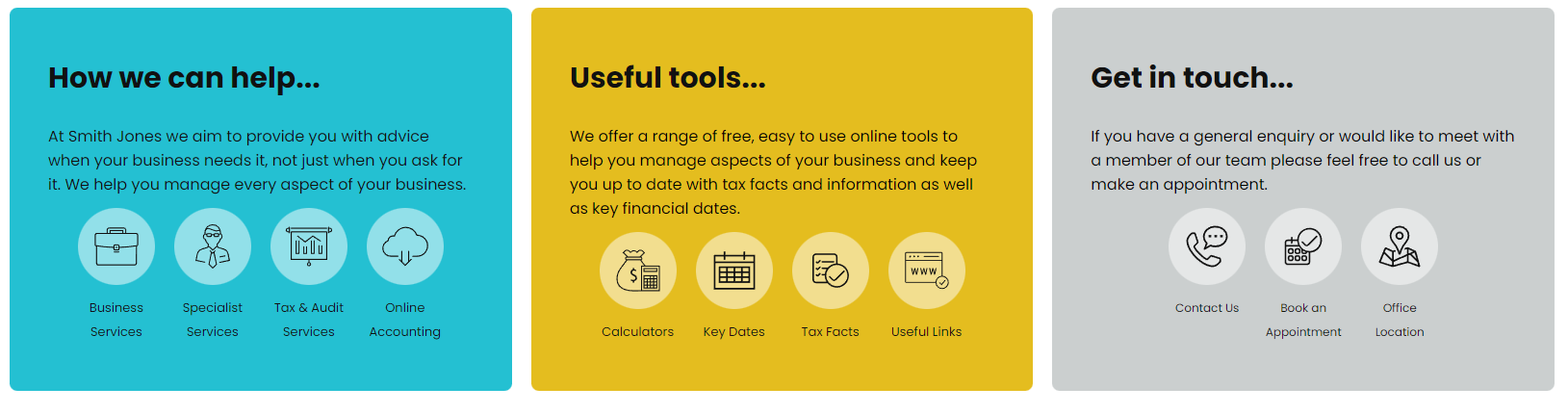
Adjust the padding of the row the features sit in as below.
Other Set Up Notes
If the site being set up uses Service Icons and/or icons on the Resources and Contact Us index pages then change those icons to match the icons used in the features.
They can be copied and pasted from their relative feature panel and styled/sized accordingly to fit each index page.
Service Icons Main Page Icons

Resources Icons Main Page Icons

Contact Us Main Page Icons

Mobile and Tablet View Setup
Menu
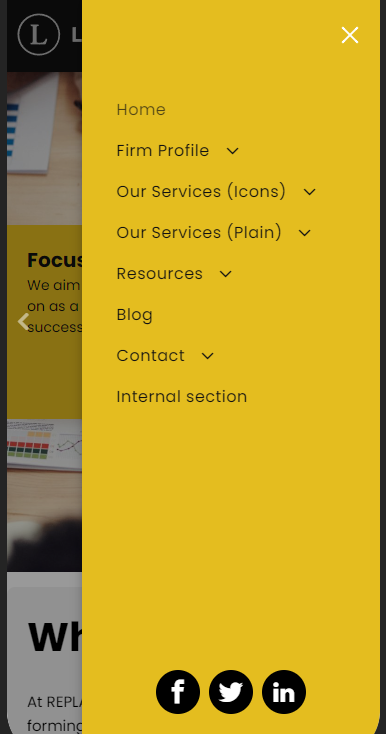
For the menu at mobile and tablet view add the social media icons (if applicable) to the bottom of the menu and style accordingly.
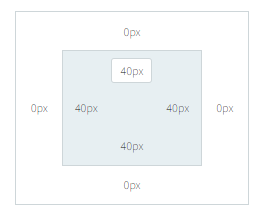
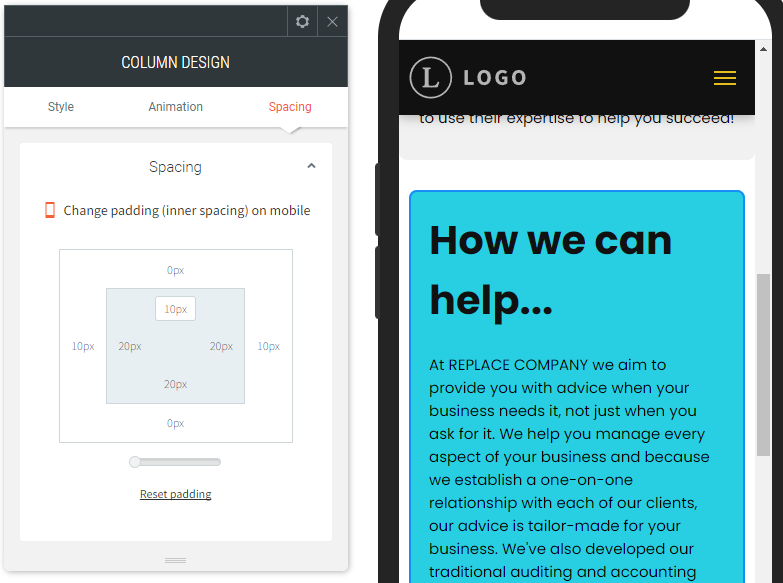
Homepage at mobile view: Hide the columns that contain the images from each row and adjust the padding for each content column as shown below.
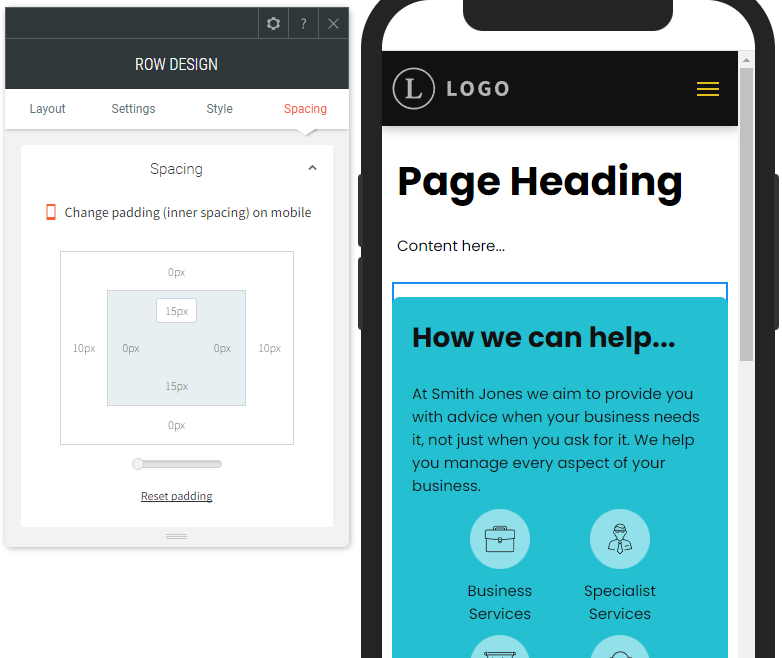
Internal pages at mobile view: Adjust the padding of the footer features as follows.
Site CSS
/* GLOBAL SITE CSS - ADD CSS TO AFFECT THE WHOLE SITE */
@media screen and (min-width:1200px) {
.rows-1200 .dmRespDesignRow, .rows-1200 .dmRespRow:not(.fullBleedMode) .dmRespColsWrapper { max-width: 1500px }
}
/* HIDE INTERNAL FEATURES ON HOMEPAGE */
#dm .dm-layout-home div.u_1224508602 { display:none !important;}
*#dm div.dmNewParagraph a,
*#dm div.dmCustomHtml a,
*#dm div.dmBlockElement a { text-decoration: none !important; font-weight: 700 !important; -webkit-transition: color 0.4s ease-in !important; -o-transition: color 0.4s ease-in !important; outline: 0 !important; }
*#dm div.dmCustomHtml a:hover,
*#dm div.dmNewParagraph a:hover,
*#dm div.dmBlockElement a:hover { color: var(--color_6) !important; text-decoration: none !important; font-weight: 700 !important; }
Note: The row id (highlighted in red above) will need to be updated to match the correct row in the newly created site. The row in question is the row containing the internal features above the footer on the internal pages. This style is to hide the internal features row on the homepage.